• Skip to primary navigation
  • Skip to main content
  • Skip to primary sidebar

TweakHound

Computer stuff...

  • Home
  • Windows XP
  • Windows Vista
  • Windows 7
  • Windows 8
  • Windows 10
  • Windows 11
  • Linux
  • Tweak Guides
  • Site Info
    • About
    • About Me
    • TweakHound’s World
    • Contact
    • My Computers
    • Old Articles
    • Privacy Policy
    • Old Index
    • Advanced Search

Windows 10 Advanced Disk Cleanup

September 16, 2015, 16:34(EDT) By Eric (a.k.a. TweakHound)

cleanmgrThis cleanup method will create a cleanup task that you can run whenever you like. It differs from the disk cleanup utility found in your menu or search (cleanmgr) in that it has far more options.

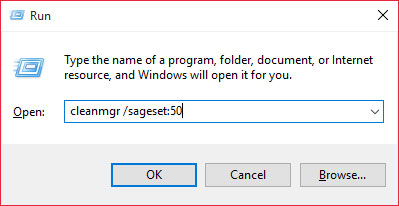
1 – Press the Windows + R keys.
In the resulting windows type cleanmgr /sageset:50 and press Enter (or click OK).
(you don’t have to use the number 50, any number will do. I use it because I always have and it is easy to remember.)
win10_advclean_1


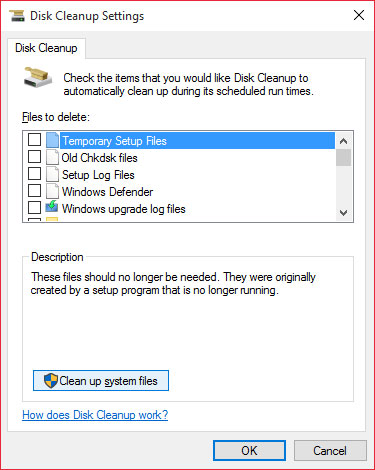
2 – Click Clean up system files

win10_advclean_2


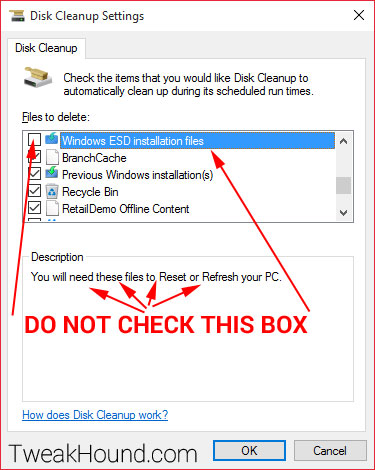
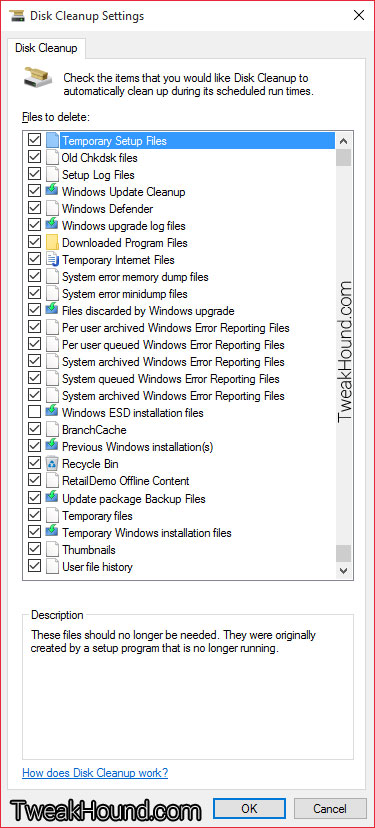
3 – Start checking boxes. You can highlight a line and it will tell you what it does.
I check all boxes EXCEPT Windows ESD installation files.
They aren’t just vital to refresh and reset, these files ARE refresh and reset.
The Previous Windows installation(s) is line what it says. To takebacks!
Click OK when done.
win10_advclean_3
 
win10_advclean_4

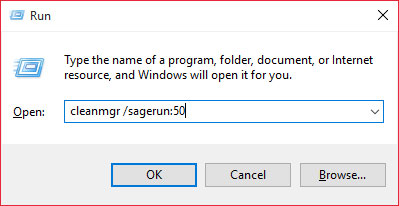
4 – Press the Windows + R keys.
In the resulting windows type cleanmgr /sagerun:50 and press Enter (or click OK).
Remember this command, you can use this whenever you like.
(Notice we changed sageSET to sageRUN.)
(The number has to be the same as you used above.)
win10_advclean_5

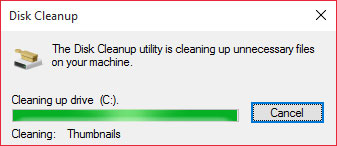
5 – Your new task will do it’s thing. This can take a while if you’ve got a lot of stuff to clean.
win10_advclean_6

REBOOT when finished!


-END-

Tagged With: How-To's, This Site, Windows 10

Reader Interactions

Comments

  1. David Horowitz says

    September 16, 2015, 16:48(EDT) at 16:48

    I’ve always been curious, but what is the purpose of the number after sageset and sagerun if it does not matter what number it is?

    By the way thanks for all the effort that you put into this site and keep up the good work! I always come here for your tips, tricks, tweaks and advice!

    • Eric (a.k.a. TweakHound) says

      September 16, 2015, 17:02(EDT) at 17:02

      A couple of reasons. 1 -It allows you to create multiple profiles for say light cleaning vs. heavy cleaning. 2 – It also allows you to make it a scheduled task.
      https://support.microsoft.com/en-us/kb/253597

Primary Sidebar

Popular Articles

Windows 10

Tweaking Windows 10

My Windows 10 Tweaks

Windows 10 Privacy Settings

Win10 Diagnostics Tracking Service Gone?

Windows 10 Advanced Disk Cleanup

Win10 Customize Installation Options

Windows 10 Dark Theme

Win10 Wallpapers, Graphics, etc.

All Windows 10 Articles

Windows 8

Tweaking Windows 8.1

Advice On Installing Windows 8.1

Clean Install Windows 8.1

Cleanup After Windows 8.1 Upgrade

Create Shutdown, Restart, Logoff Tiles For Windows 8

Tweaking Windows 8

Install Windows 8 – Clean Install With Upgrade Media

Install Windows 8 – Upgrade

Windows 8 – Cleaning Up After You’ve Upgraded

Windows 8 Freeware Machine

Windows 8 SSD Settings, Etc.

How To Resize Your Windows 8 Partition

Create Windows 8 Recovery Media

Windows 8 – Elevated Command Prompt

How To Fix The Windows Bootloader

Windows 7

Installing Windows 7

Tweaking Windows 7

Windows 7 Diagnostics Tracking Service

The Windows 7 Freeware Machine

The Windows 7 Pagefile And Running Without One

Bad Tweaks

SSD Tweak Guide (sort of)

The noguiboot (no GUI Boot) Tweak

NtfsMemoryUsage=2 Tweak

More Windows 7 articles here.

Windows Vista

Installing Windows Vista

Tweaking Windows Vista

More Windows Vista articles here.

Windows XP

eXPired - The Last Windows XP Guide You'll Ever Need

The Right Way To Install Windows XP

Super XP Tweaking Guide

The Freeware XP Machine

Bad Tweaks

More XP Articles here and here.

Backup

Backup Article Greatest Hits – Vol. 1

Other

Cataloging Your Music Collection

Finding Good Album Art

Converting Vinyl Records To Digital Music – A Non-Audiophiles Guide

Windows All-In-One Recovery Flash Drive

SSD Tweak Guide (sort of)

Raidmax Blackstorm Case Review

Disk Partitioning

Ditch Those CD's! A Guide To Using USB Flash Drives

Checking Your Disks For Problems

Bad Tweaks

More articles here

Tags

Android Backup Beer Computer Hardware Computer News Cool Tools Freeware How-To's Linux Off Topic openSUSE Playlists Privacy Security Software This Site vacation Veterans Windows 7 Windows 8 Windows 10 Windows 11 Windows Vista Windows XP

TweakHound - Optimize Your Computing Experience! TweakHound - Optimize Your Computing Experience!

Copyright 2002-2025 by Eric Vaughan All material contain here is the property of the materials owner. Windows, Windows XP, Windows Vista, Windows Seven, Windows 8, Windows 10, Windows 11, Microsoft, and all associated logos are trademarks/property of Microsoft. You may not use or copy any material from tweakhound.com without expressed written permission. Hotlinking to any material within this site is forbidden. Privacy Policy